
PageFlick 2.0: more ways to keep the story going
A closer look at read aloud, Notebook, reading goals and a better-organized library in PageFlick 2.0.
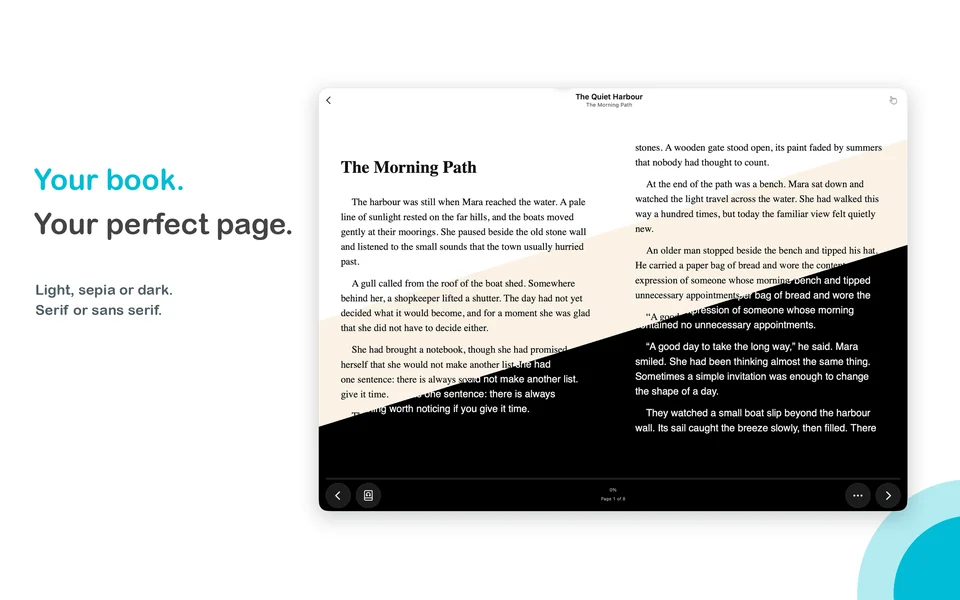
PageFlick 2.0 is released today for iPhone, iPad and Mac. The update may take a little time to appear in every App Store region.
PageFlick started with a simple idea: turn pages with one finger, without reaching for the screen. Version 2.0 builds on that idea with more ways to listen, save a passage and make time for your books.
Listen when you want to
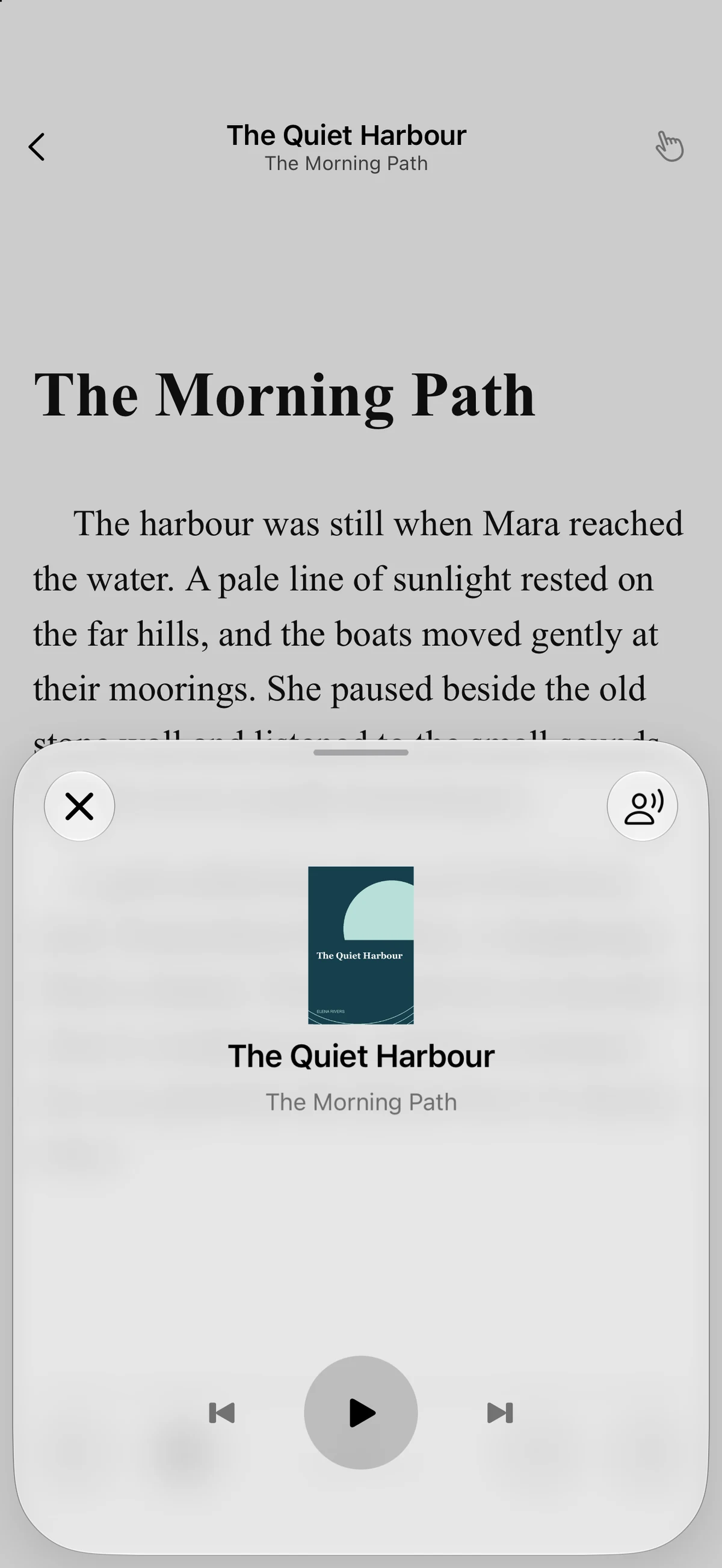
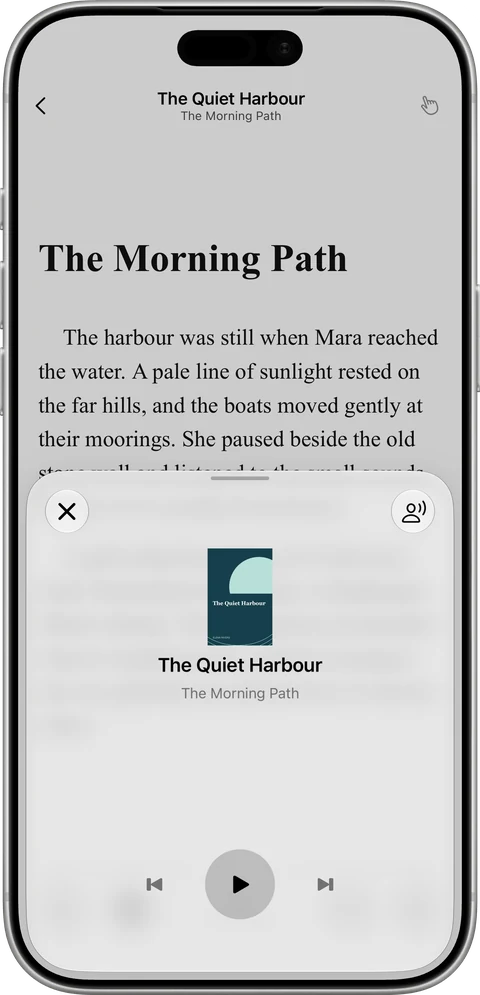
Read aloud uses compatible voices installed on your device. Play or pause, move to the previous or next sentence, and choose a voice. Resuming starts the current sentence again. Playback runs while the reader is active, rather than as background audiobook playback.
Apple offers Enhanced and Premium versions of some voices. Download one in your device’s Settings, then reopen your book in PageFlick to refresh the voice list. The picker currently shows names without quality labels. Our voice setup guide explains the iPhone steps and what to check if a voice does not appear.
See read-aloud controls on iPhone
Keep the passages that stay with you
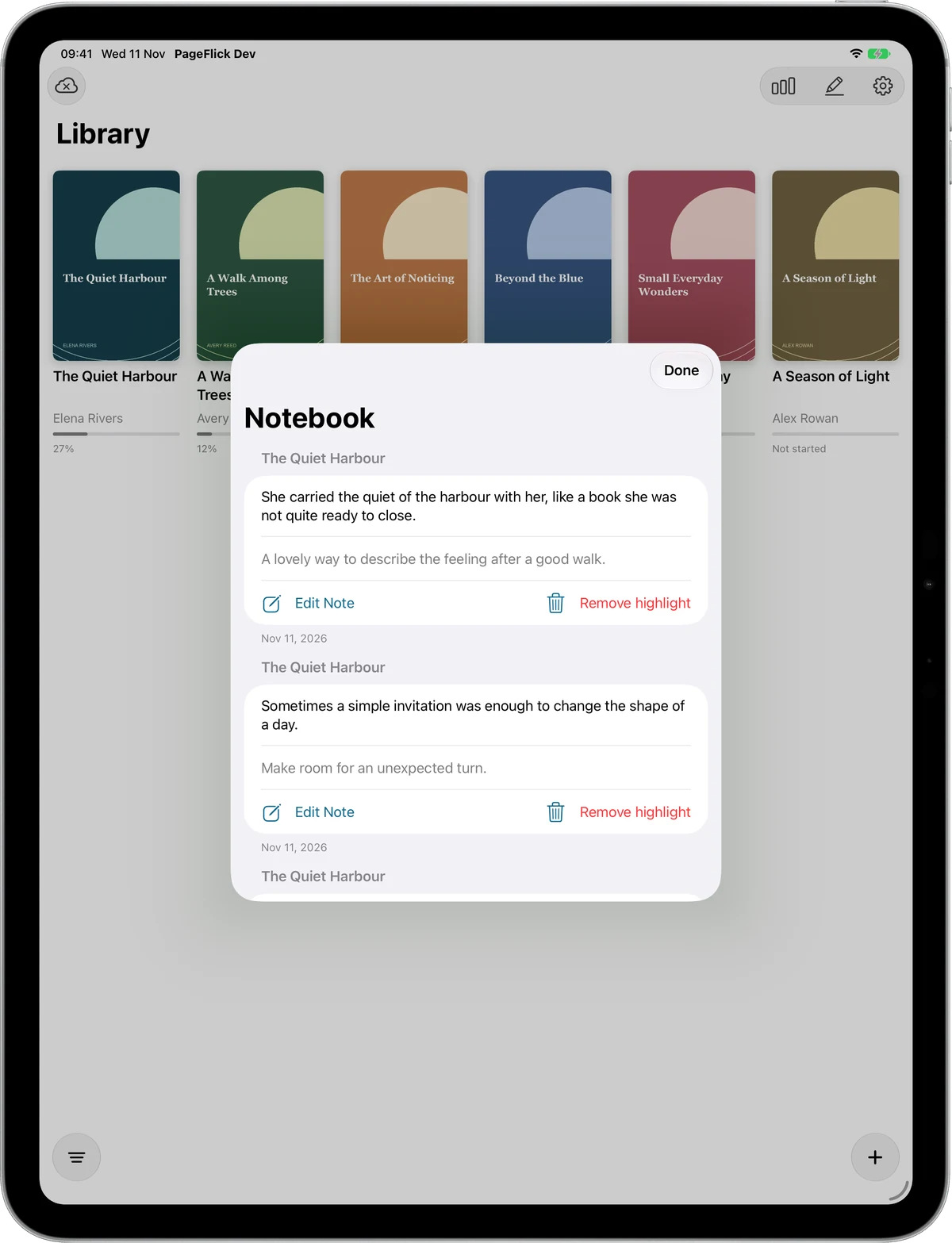
Select a passage and choose Highlight. Notebook brings those passages together with your notes, both for the book you are reading and across your library.
You can export saved passages, notes and source references as Markdown. It is an export of your notebook, not the entire book. Learn about Notebook.
Make room for reading
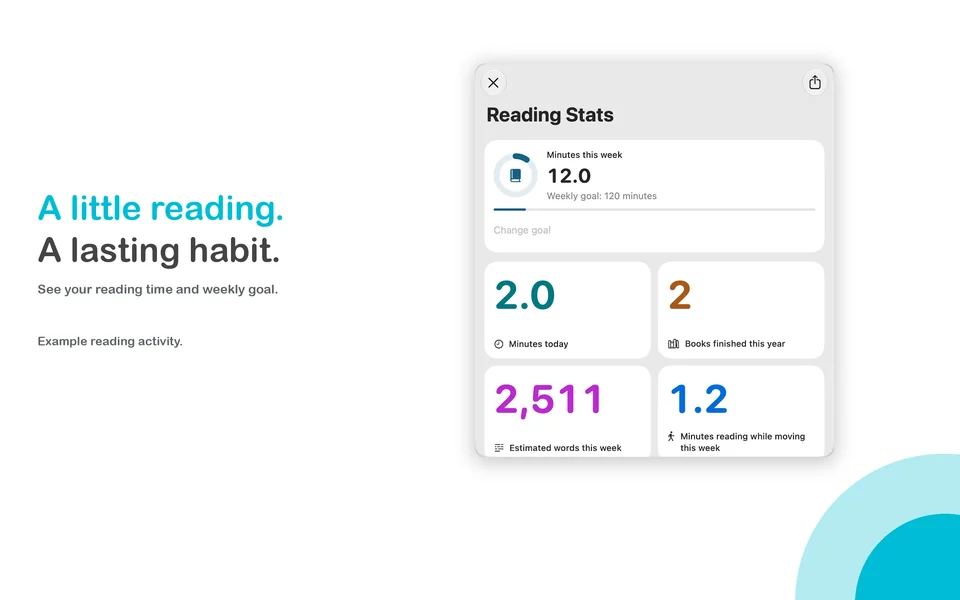
Reading stats shows your recorded activity and history. Set a weekly reading-time goal that fits your routine, then adjust it as you go. Reading-data export is available as JSON.
Word counts are estimates. PageFlick identifies partial measurements and sessions that are not yet available, rather than presenting them as complete totals. Statistics do not require the Unlimited Books purchase. See statistics and goals help.
Finish a session with a clearer picture
A reading-session summary brings together the activity you have just recorded. The timeline helps you look back at active reading and listening, while the daily recap gathers the day’s reading in one place. An optional recap reminder is off by default; turn it on only if it suits your routine.
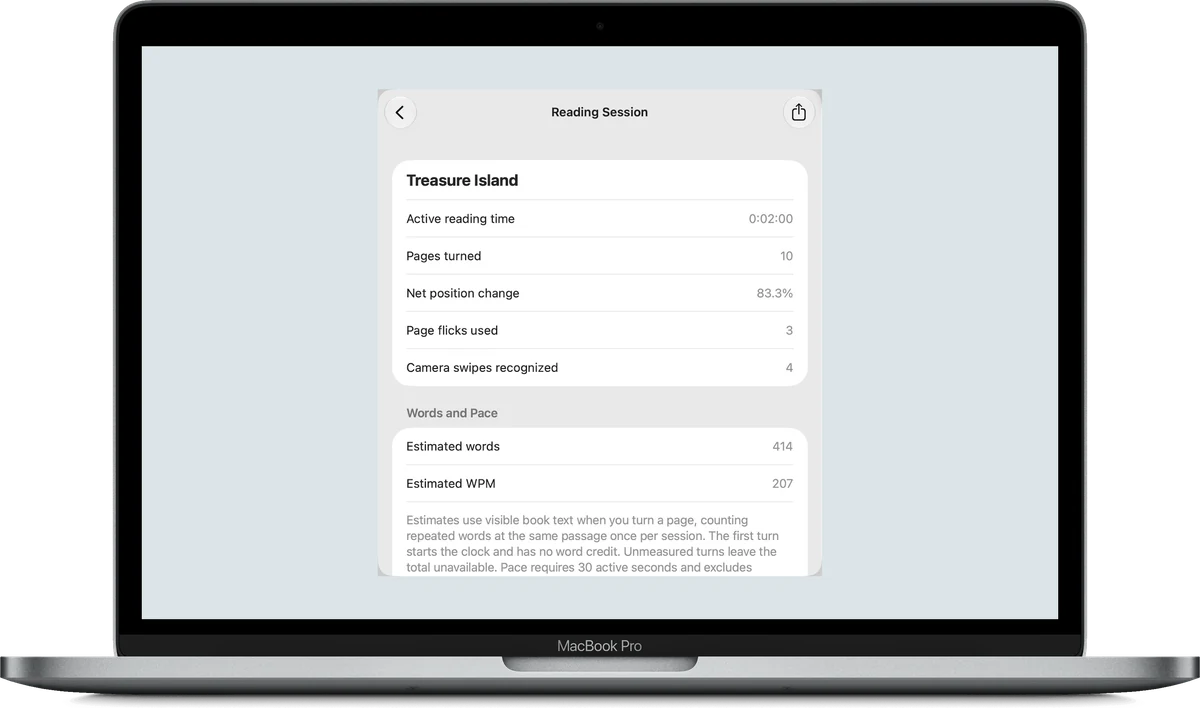
Actual Mac app window on a neutral desktop, presented in a MacBook frame.
Find your next book
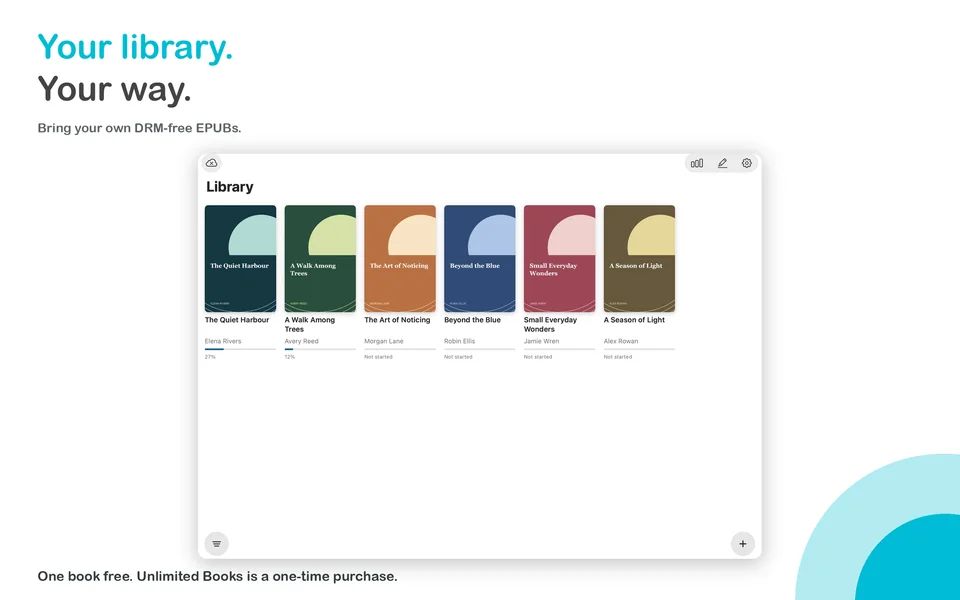
Filter your library into Unread, Currently Reading and Finished shelves. Sort titles alphabetically or put your most recently added books first. Your choice stays saved and works within each shelf too. Open a book’s details to see its shelf, reading history and Notebook together, and manage its finished date.
Scroll when it suits the book
Choose continuous scrolling in the text settings, or stay with paged reading. In scrolling mode, page controls and camera gestures move by a screenful. Passive scrolling does not start a tracked reading session.
Wide reader layouts can use two columns when there is room. Choose a single column if that feels more comfortable.
Your reading at a glance
The Reading Card and Cover Story widgets show your current book, saved progress and this week’s active reading minutes. They use saved reading data, so they are a glance at your latest recorded progress rather than a live session timer.
Look back, or share a moment
Explore your reading history and per-book activity. Preview a share card for a book or reading session before choosing where to share the image. Sharing is your choice; it does not publish your reading activity automatically.
Fit reading into your workflows
PageFlick’s Shortcuts actions provide another way to work with your reading. On Mac, optional local automation also supports the companion command-line and MCP tools. These integrations are opt-in; simply installing PageFlick does not turn on external access to your library. The core reading app does not require them.
The reading setup is still yours
Themes and font choices remain part of PageFlick: light, sepia or dark, with text adjusted for your eyes and your setup. The updated controls put these choices alongside your new reading tools. Gesture reading still uses one raised index finger: swipe left for the next page or right to go back.
Bring your own DRM-free EPUBs. Start with one book at a time for free, or keep more with the optional one-time Unlimited Books upgrade. For setup and device requirements, visit PageFlick support.
Explore the app on your device
Browse 20 real screenshots across iPhone, iPad, iPhone Duo and Mac, including library shelves, read aloud, Notebook, text settings, statistics and reading history.